Task Management
Create a Task
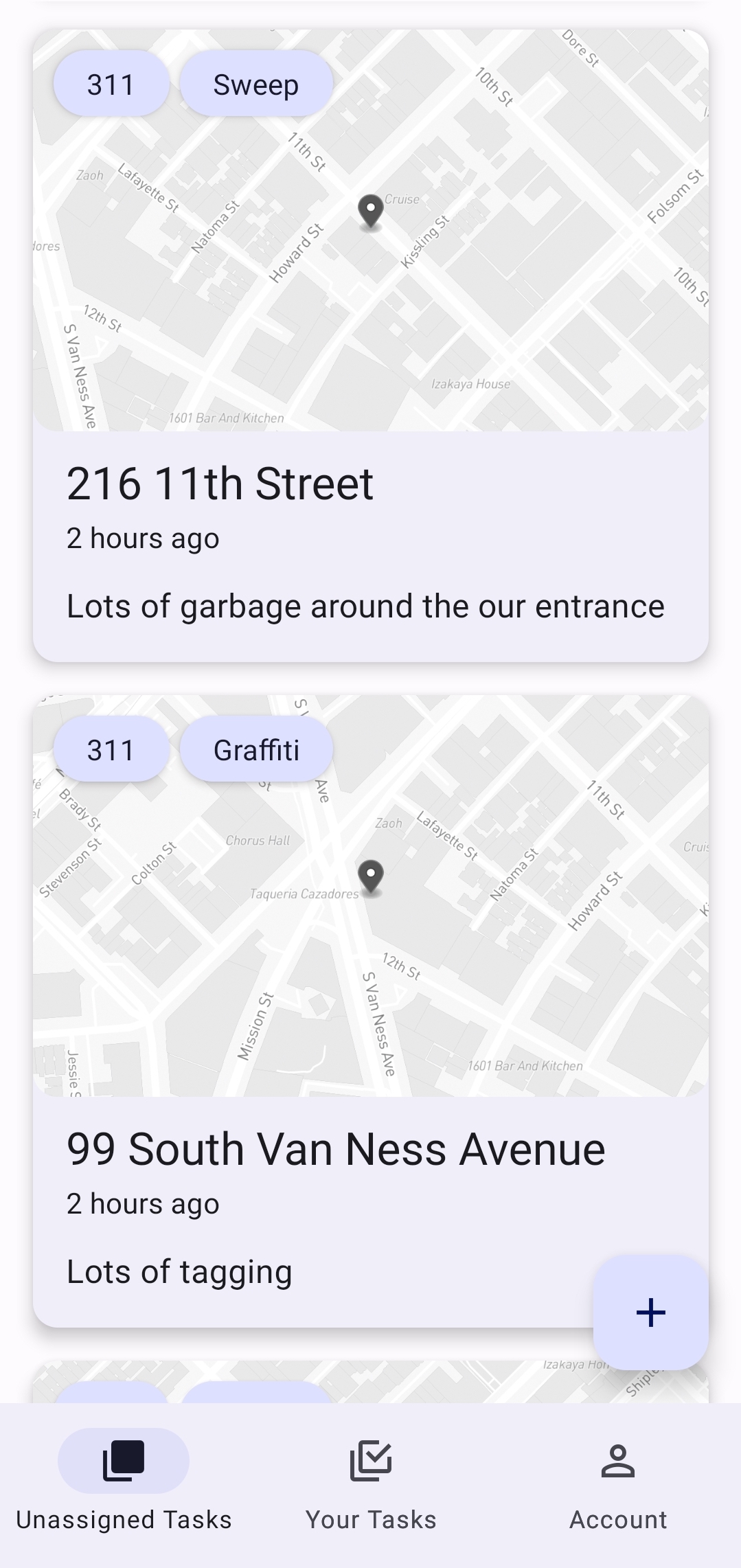
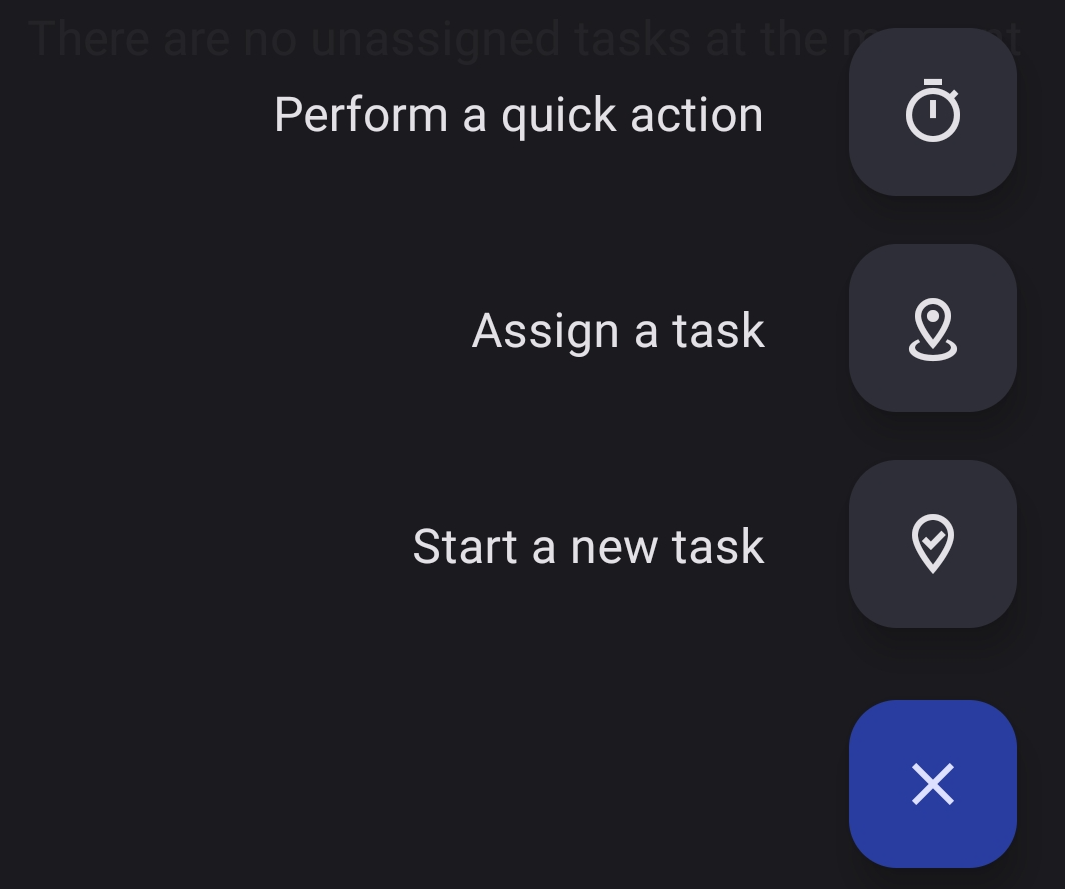
Click the “+” icon in the bottom-right of the home screen
Click “Start a new task”
Select your division using the option bar at the top.
Once your division is selected, select your task category underneath.
If applicable, take a “before” and “after” photo, and add any applicable notes.
Select “Complete” to complete the task.
Note: Tasks that are created or completed while the user is offline will be saved in the Jia app and uploaded once a signal has been established.
Task Assignment
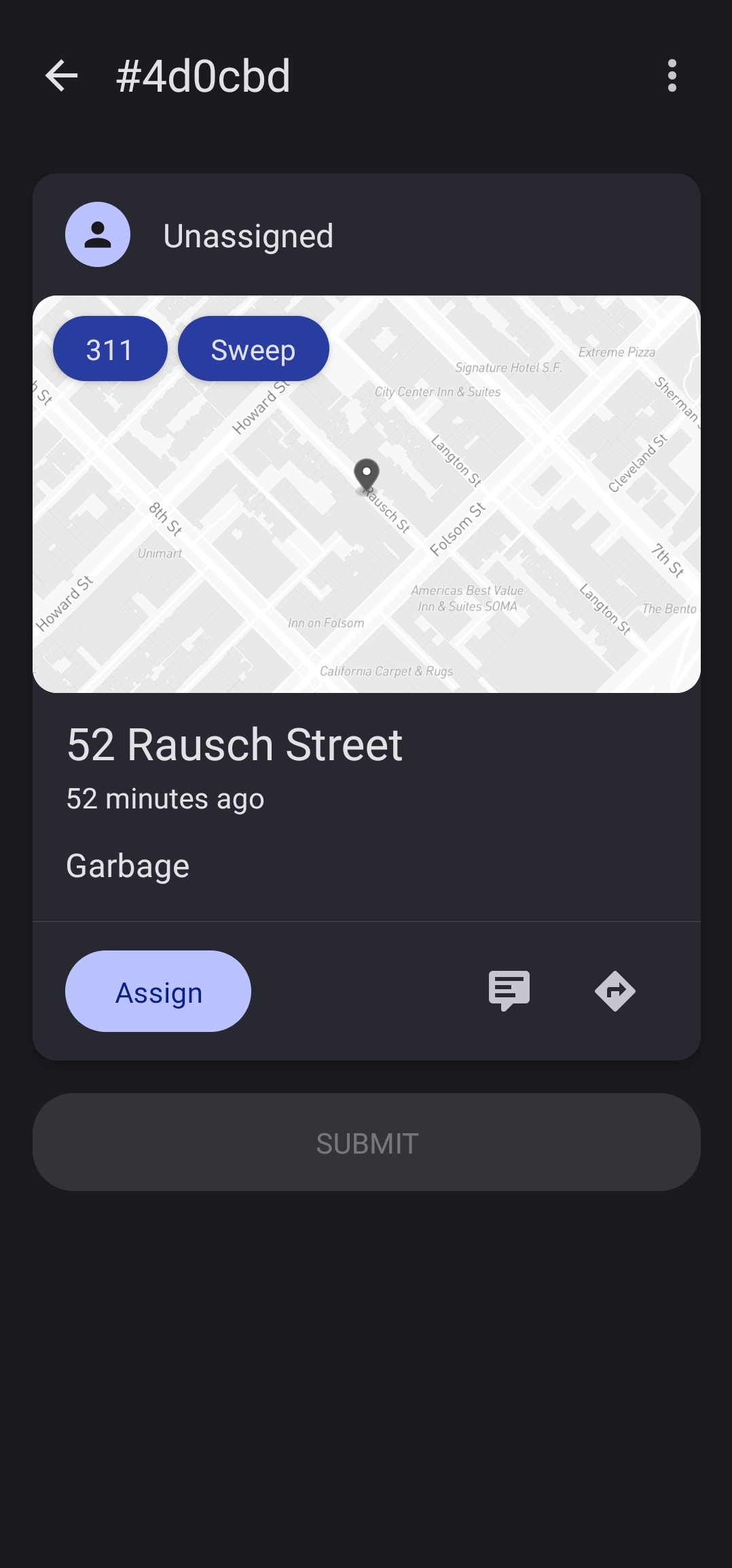
Select a task from the “Unassigned” menu.
Select the “Add an assignee” button underneath the location of the task.
Select “Assign” to assign the task to the correct user.
Skip tasks
Select a task from the “Unassigned” menu or the “My Tasks” menu.
In the upper-right of your screen, click the 3 vertical dots menu.
Select “Skip Task” from the menu.
Add notes to a task
Select a task from the “unassigned” or “my tasks” menu.
Under the task information, select the “Notes” field.
Enter notes for the task you’d like and select anywhere on the screen outside of the “Notes” field. Your changes will be saved automatically.
Address Location
For every task, you can select the map in the task screen to open your phone’s default Maps app.
From there, you can use your phone’s default Maps app to navigate to the location of your task.